Editing to the beat turns average montages into hypnotic sequences viewers cannot look away from. The technique is simple—align cuts to musical transients—but the execution separates amateur hype edits from pro polish. This guide covers workflows in major NLEs and how to pick editable tracks on FreeBeatHub.
Why Beat Sync Works
Humans predict rhythm. When visuals confirm those predictions, the brain rewards continuity with attention. Beat-synced cuts increase perceived production value even on phone footage.
- Raises retention on montage segments
- Hides jump cuts in dance and fitness content
- Makes B-roll feel intentional
- Pairs well with royalty-free EDM and hip-hop beds
Finding Beats in Any Track
Run beat detection or tap tempo manually. Mark every downbeat for simple syncs; mark 1/8 notes for hype montages. Watch for false transients from hi-hats when you need big visual moves on kicks only.
Waveform reading
Peaks are not always beats. Zoom in: kick drums show wide low-frequency blobs; snares are tighter mid peaks. Train your eye on steady lofi before chaotic dubstep.
Premiere Pro Workflow
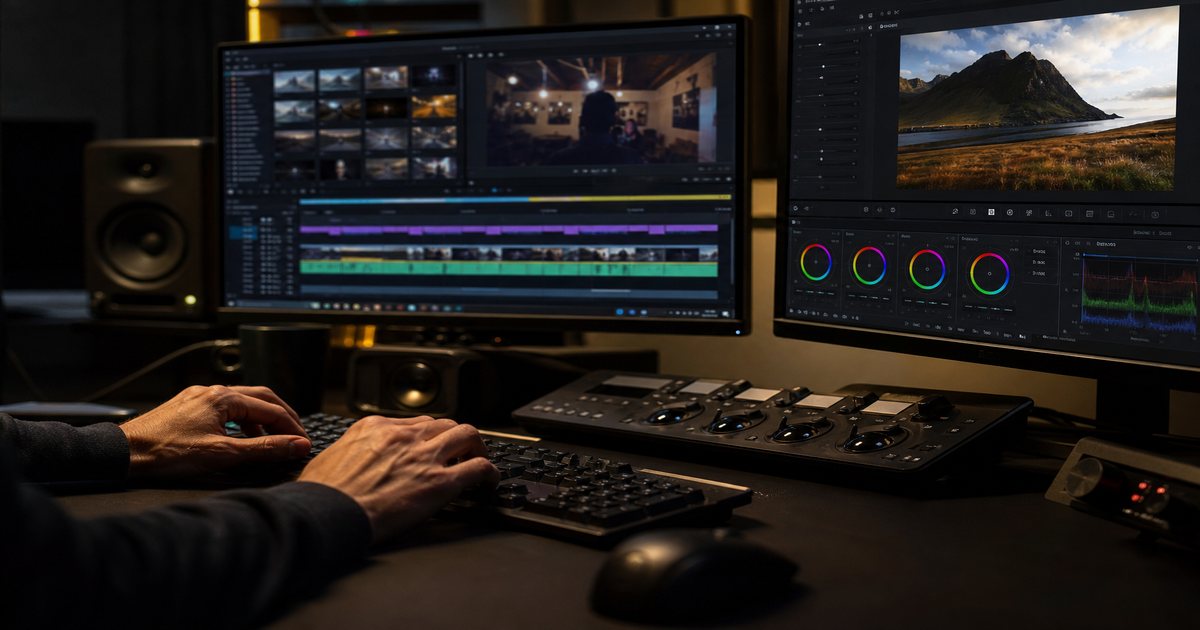
Import music, generate markers with beat detect plugins or manual `M` taps while playing at 0.5x. Lay clip in points on markers. Use rate stretch sparingly—fix sync in music choice first.
Fix the music choice before you time-stretch footage into unnatural motion.
DaVinci & CapCut Tips
DaVinci's cut page favors fast beat cutting with sync bin clips. CapCut auto-beat sync helps Shorts—verify every third cut because automation misses accents.
- DaVinci: blade on marker, ripple delete gaps
- CapCut: beat sync then manual nudge
- Export XML between tools if needed
- Keep project fps constant
Advanced Cut Patterns
Alternate cut density: two fast cuts per bar, then one held shot on the drop. Use match action across beats—subject exits frame right on snare 1, enters left on snare 2.
Speed ramps on drops
Ramp 50→100% over two beats before a chorus. Music must have an obvious lift; browse cinematic and electronic tags when planning ramps.
Choosing Editable Tracks
Pick songs with stable grids and clear drums. Avoid overly busy jazz unless you edit loosely. Build a beat-edit folder in your library and note BPM in filenames. Check licensing FAQ before client work.
- Clear kick/snare pattern
- BPM labeled
- Minimal vocal interference
- Commercial license on file
Key Takeaways
- Mark downbeats first; add subdivisions for denser montages
- Use Premiere markers or CapCut beat sync as a baseline
- Alternate cut density for dynamic rhythm
- Choose tracks with obvious drum grids and labeled BPM
- Verify auto-sync by ear—automation misses accents
| Software | Beat Tool | Best For | Tip |
|---|---|---|---|
| Premiere Pro | Manual markers | Long-form montages | Tap at 0.5x speed |
| DaVinci Resolve | Cut page + markers | Fast social cuts | Ripple delete gaps |
| CapCut | Auto beat sync | TikTok / Reels | Nudge every 3rd cut |
Ready to find your soundtrack? Browse thousands of royalty-free tracks on FreeBeatHub.
Browse Free MusicFrequently Asked Questions
What BPM is easiest for beginners to edit to?
90–120 BPM with clear four-on-the-floor or hip-hop drums is forgiving. Slower tempos make every cut feel heavier; faster tempos require more clips.
Should I cut on every beat?
No. Alternate dense sections with held shots on drops. Cutting every beat fatigues viewers.
Can I edit to royalty-free music commercially?
Yes, when your license permits commercial use. FreeBeatHub tracks are suitable for client and monetized work when terms are met.
Why does auto beat sync look off?
Algorithms often lock to hi-hats instead of kicks. Manually nudge markers to the transients that matter for your visual story.