OBS gives you broadcast control—but routing uncleared music through it still gets VODs muted. Build a dedicated royalty-free playlist from FreeBeatHub, route it on its own track, and duck under mic so live streams sound professional and archives stay clean.
OBS Audio Routing Basics
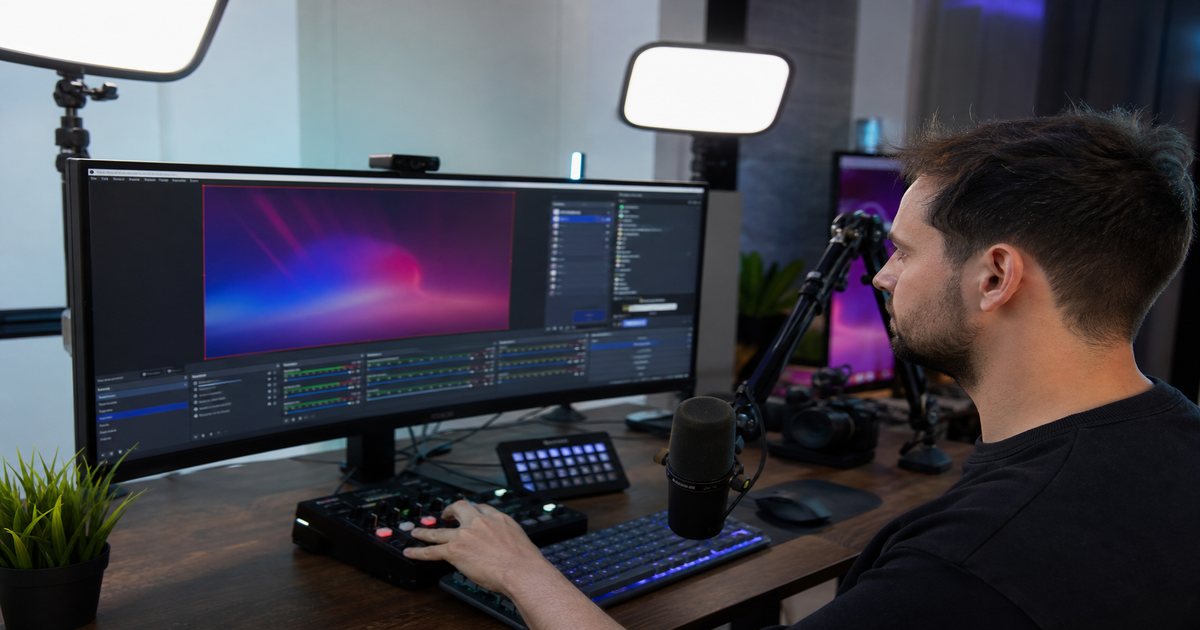
Add music as a dedicated Media Source or VLC Video Source—not desktop audio capture from a consumer app. Assign to Track 2 or higher if you record multitrack for post-VOD editing.
- Never route Spotify or Apple Music desktop audio
- Use Media Source for local cleared files
- Assign music to isolatable OBS tracks
- Monitor with headphones to catch clipping early
Playlist Sources That Loop Cleanly
Pre-trim loops in a DAW to remove long intros. OBS shuffle is fine for variety; avoid back-to-back tracks with wildly different LUFS. Normalize playlist to -14 LUFS integrated.
Mic Ducking During Commentary
Apply OBS sidechain ducking or a compressor with sidechain input on the music source keyed to your mic. Attack 5–10 ms, release 200–400 ms for natural speech gaps.
VOD and Clip Safety
Twitch and YouTube scan VOD audio even when live chat loved the moment. Keep license PDFs and track lists per stream session. See our DMCA-safe guide for platform specifics.
Live forgiveness does not extend to VOD fingerprinting.
Music Across Scene Switches
Pin music sources to persist across scenes using OBS scene inheritance or a dedicated always-on scene. BRB and starting-soon screens can share hype beds; gameplay uses ducked underscore.
Pre-Stream Music Checklist
Before going live: verify track clearance, test ducking depth, confirm track isolation in recording settings, and spot-check one song on phone speakers for mud.
- Load cleared playlist only
- Verify sidechain ducking on mic
- Confirm multitrack track assignment
- Log track list with license IDs
- Test 60s recording before going live
Key Takeaways
- Route cleared files via Media Source—not desktop audio apps
- Normalize playlist to -14 LUFS before streaming
- Sidechain duck music 20–28 dB under commentary
- Isolate music on separate OBS tracks for VOD control
- Log track lists and licenses per stream session
| Stream State | Music Role | Duck Depth | Source |
|---|---|---|---|
| Starting soon | Hype bed | None | Loop playlist |
| Gameplay | Underscore | 22–28 dB | Media Source |
| Just chatting | Ambient | 18–24 dB | Shuffled cleared tracks |
| BRB screen | Full energy | None | Dedicated BRB loop |
Ready to find your soundtrack? Browse thousands of royalty-free tracks on FreeBeatHub.
Browse Free MusicFrequently Asked Questions
Can I play Spotify through OBS?
No for monetized or archived streams—Spotify personal licenses do not cover broadcast. Use royalty-free libraries with stream-friendly terms.
Should stream music go to the same OBS track as game audio?
Route music to a dedicated track so you can mute it independently in VOD exports or multitrack recordings.
How loud should stream beds be?
Target 20–28 dB below voice when speaking. Louder during menu or loading screens only.
Do OBS filters affect latency?
Heavy compression chains add minor latency—usually negligible for background beds, not for monitoring voice.