CapCut put beat-synced editing in every creator's pocket—but auto-beat is not magic on every track. Learn when to trust detection, when to mark manually, and how to pair cleared beds from FreeBeatHub with cuts that feel professional on TikTok, Reels, and Shorts.
CapCut Beat Detection: What Works
CapCut analyzes transients—kicks, snares, claps—to suggest cut points. Clear drum patterns at steady BPM yield the best auto markers. Swelling orchestral or ambient pads confuse detection because beats are implied, not percussive.
Before auto-beat, listen once and note whether the track is grid-based or rubato. Grid-based royalty-free EDM and pop from electronic collections sync fastest.
Manual Beat Markers for Precision
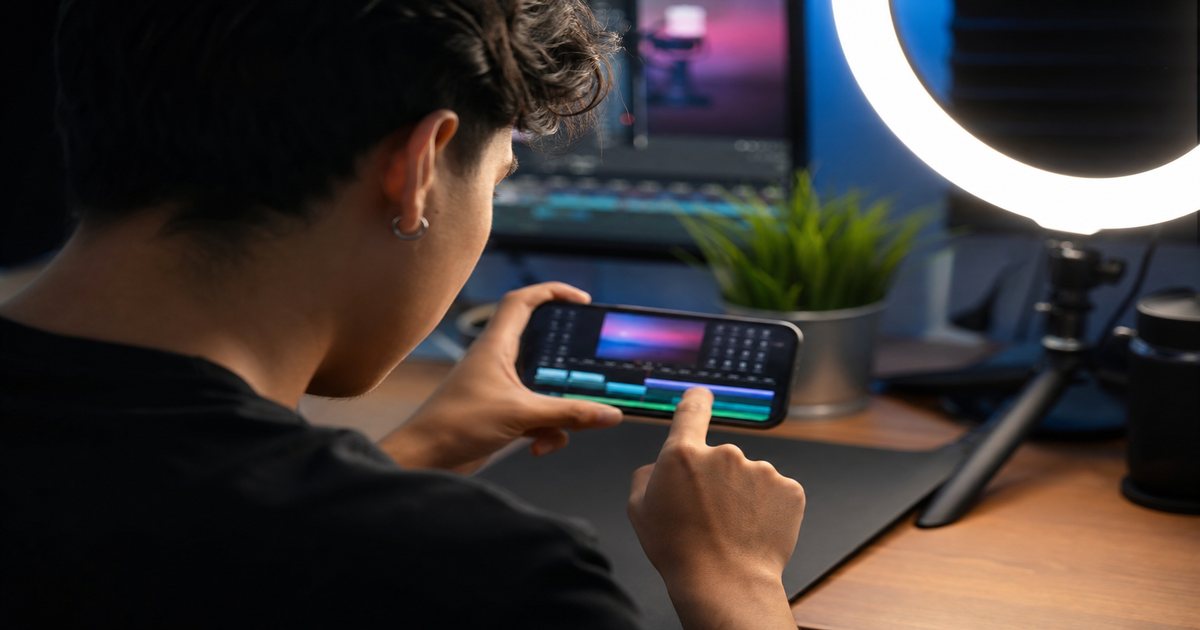
Tap beat markers while previewing at 0.5x speed for complex tracks. Place markers on downbeats you will cut to—not every hi-hat—or your timeline becomes unreadable.
Color-code marker passes: first pass for major downbeats, second for fills you might use on alternate exports.
Auto-Cut and Beat Sync Tools
Auto-cut features slice clips to marker intervals. Works well for b-roll montages; risky for dialogue where lip sync matters. Always review every cut—auto tools favor rhythm over storytelling.
For hybrid edits, beat-sync b-roll sections only and keep A-roll on narrative pacing.
Montage vs narrative
Montage: full beat sync. Tutorial or vlog: music supports, cuts follow speech cadence. Mixing both modes in one project is the most common CapCut mistake.
Animating Text and Stickers on Beat
Apply text animations on marker hits—pop, bounce, or typewriter at 2–4 frame offsets for polish. Stagger multi-line reveals across consecutive beats instead of one frame.
Text that lands three frames late reads amateur; three frames early reads intentional.
Export Settings for Music-Heavy Edits
Export 1080p at high bitrate when music transients matter. Double-check audio sync on a phone speaker—CapCut preview headphones lie about how snare hits translate.
Keep -1 dB headroom on music bus to avoid inter-sample clipping after platform re-encoding.
CapCut Beat Sync Workflow
Import cleared track → run or tap beat markers → rough cut b-roll to markers → refine storytelling → add text on hits → export → verify on device. Save project templates per BPM bucket in your batch workflow.
- Import music and lock timeline
- Auto-detect or manual mark beats
- Cut b-roll to major markers
- Animate text on selected hits
- Export and phone-speaker QA
Key Takeaways
- Auto beat detection works best on grid-based EDM and pop
- Manual markers at 0.5x speed fix ambiguous beds
- Beat-sync b-roll only when dialogue drives A-roll pacing
- Offset text animations 2–4 frames before the visual hit
- Verify exports on phone speakers before publishing
| Edit Type | Beat Tool | Marker Density | Review Focus |
|---|---|---|---|
| Hype montage | Auto-detect | Every downbeat | Cut variety |
| Tutorial | Manual sparse | Section changes only | VO clarity |
| Product demo | Manual mid | Feature reveals | Text legibility |
| Travel vlog | Auto + trim | Phrase starts | Story order |
Ready to find your soundtrack? Browse thousands of royalty-free tracks on FreeBeatHub.
Browse Free MusicFrequently Asked Questions
Does CapCut beat sync work on all genres?
It works best on four-on-the-floor EDM and pop. Ambient and classical beds need manual markers for reliable cut points.
Can I change BPM after marking beats?
Speed changes desync markers. Re-run beat detection or re-mark after any tempo adjustment.
Should I edit to music or add music last?
Import music first for montage edits. For talking-head content, score after picture lock and duck under voice.
Why do my CapCut exports sound quieter?
Check normalize settings and avoid stacking limiters on music and master bus. Target -14 LUFS for social platforms.