Speed ramps without music sync feel like Instagram filters. Ramps locked to swells and hits feel like cinema. Pair Resolve retime with royalty-free tracks from FreeBeatHub for edits that land every time.
Why Speed Ramps Need Music Sync
Slow-motion draws attention to the wrong moment if it misses the beat. Viewers feel timing errors subconsciously. Music gives you landmarks for ramp in/out points.
- Downbeats for snap zooms and hype ramps
- Swells for cinematic slow-mo holds
- Silence pockets for hard speed snaps
- Cleared music on dedicated Fairlight track
Marking Beats Before Ramping
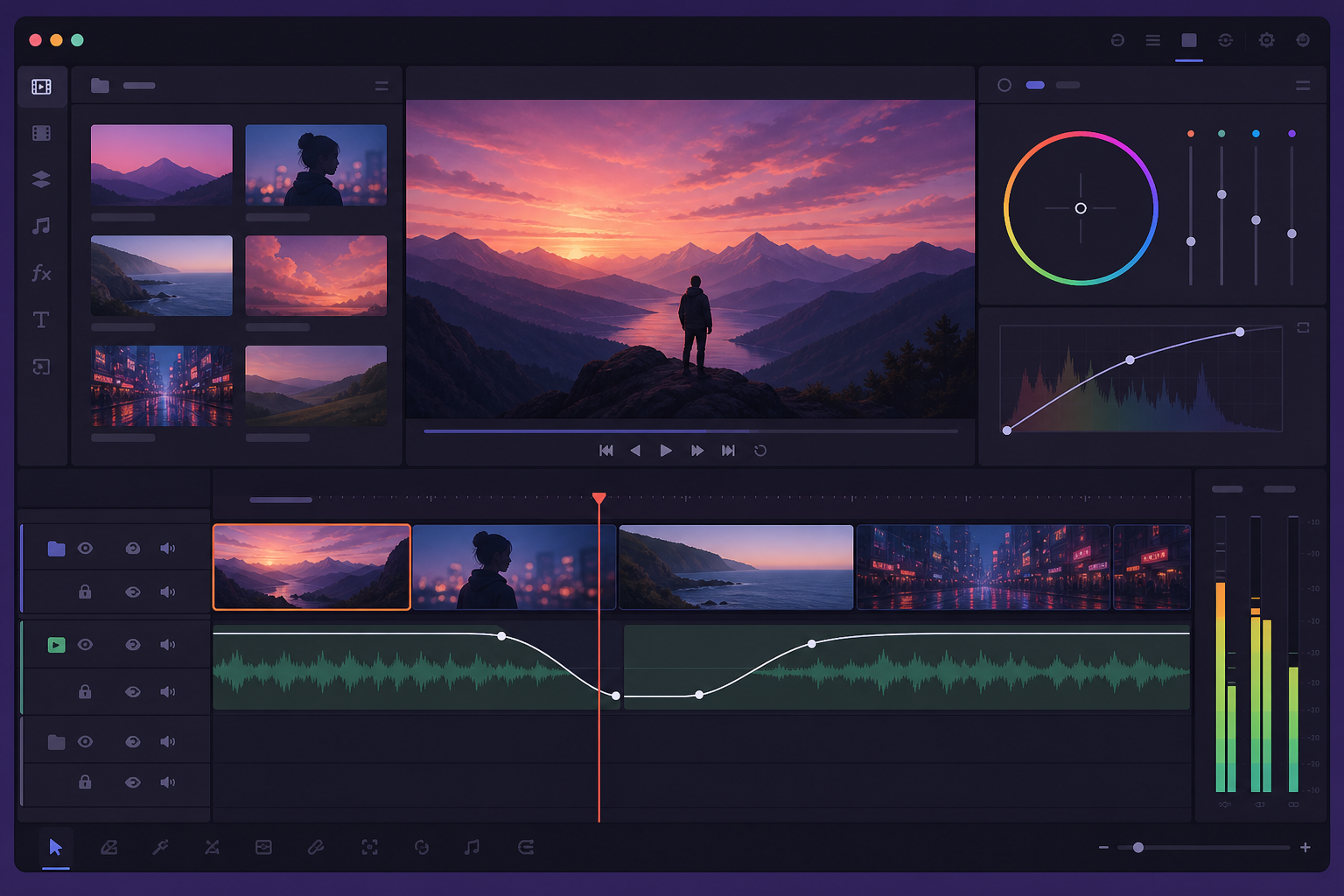
Import music first. Add markers on downbeats and swell peaks. Edit video to markers—not the reverse. Browse cinematic for obvious swell structures.
Retime Controls in Resolve
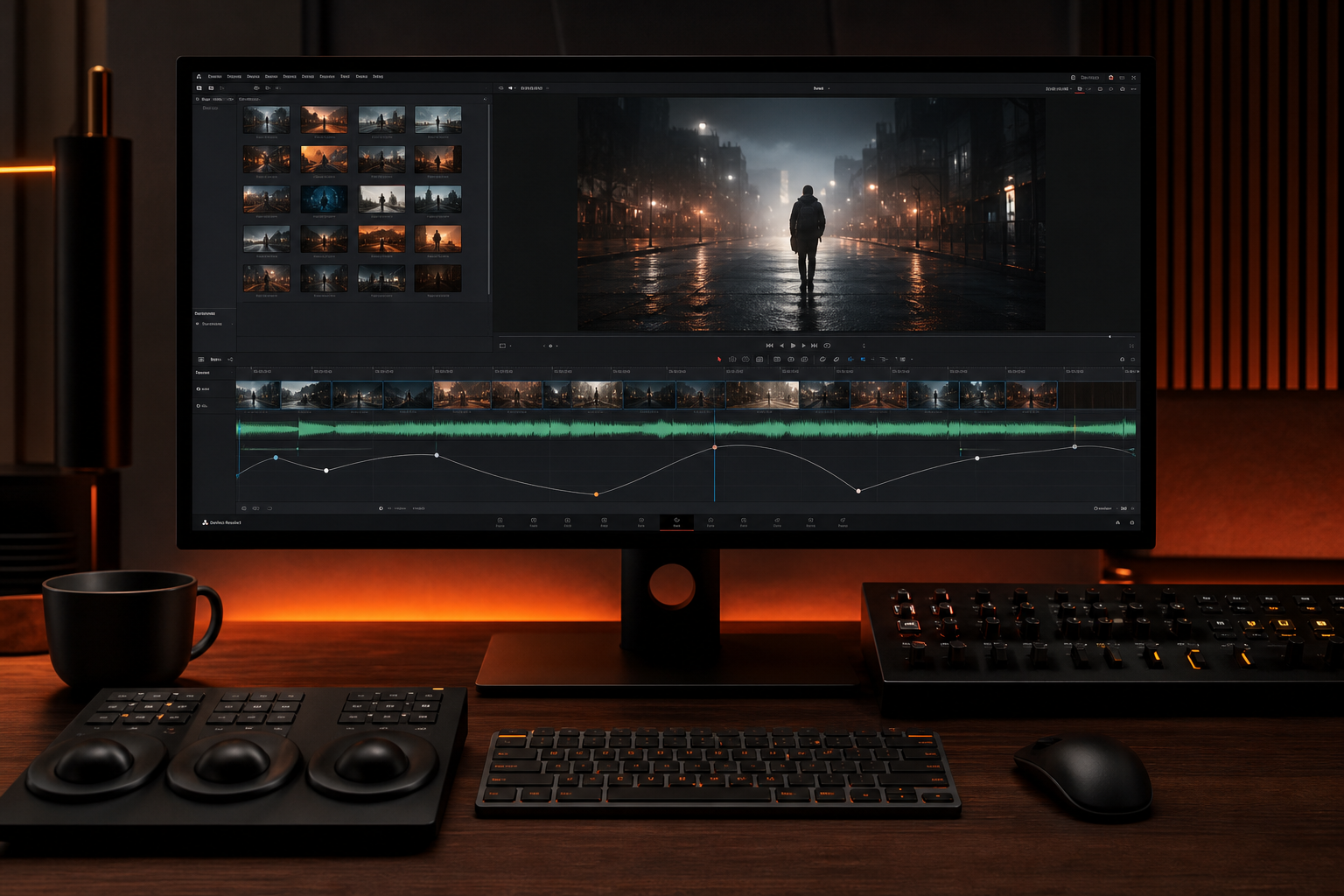
Clip → Retime and Scaling → Speed Curve. Set slow segment on swell, return to 100% on downbeat. Optical flow for smooth slow-mo. Mute native clip audio—use music bed only.
Aligning Ramps to Swells
Start slow-mo 0.5s before swell peak; return to full speed on resolve chord. The viewer feels acceleration as music lands—peak synergy for product and sports edits.
Handling Audio During Ramps
Never leave stretched clip audio under ramps—warped dialogue ruins clips. Mute source audio; lay cleared bed. Duck bed if VO needed; see Resolve fade guide.
Speed Ramp Music Workflow
- Lay music, mark beats and swells
- Rough cut visuals to structure
- Apply speed curves to marked sections
- Fine-tune ramp handles frame-by-frame
- Export, verify on phone—ramp timing reads smaller on mobile
Speed Ramp Mistakes
- Ramps with no musical anchor—feel random
- Stretched clip audio left on
- Slow-mo through entire track—fatigue
- Optical flow off—chunky slow-mo
- Ramp out of sync by 3 frames—viewers feel it
Key Takeaways
- Mark beats and swells before applying speed curves
- Mute clip audio—use cleared music bed only
- Slow-mo on swells, snap ramps on downbeats
- Use optical flow for smooth retime
- Verify timing on phone speakers
| Edit Style | Sync To | Speed Range | Genre |
|---|---|---|---|
| Cinematic B-roll | Swell peak | 40–70% | Orchestral |
| Sports hype | Downbeat | 120% snap | Electronic |
| Product hero | Resolve chord | 50% hold | Minimal |
| Travel montage | Bar lines | Varied | Indie |
Ready to find your soundtrack? Browse thousands of royalty-free tracks on FreeBeatHub.
Browse Free MusicFrequently Asked Questions
Should I speed ramp to the beat or the swell?
Ramp into downbeats for punch; ramp through swells for cinematic slow-mo. Match intent—hype vs beauty.
Does retimed clip audio stay synced?
Clip audio stretches with video—usually mute it and use royalty-free music bed instead for clean results.
What BPM works best for speed ramps?
80–120 BPM for cinematic; 120+ for hype sports edits. Mark every bar before setting ramp curves.
Can I speed ramp in the free Resolve version?
Yes. Retime and speed curves work in free DaVinci Resolve—Fairlight handles music on separate track.